Adding Worker Status Events
The procedure below describes how to add a Worker Status Event. You can add either a wrap-up event or a Not ready group event.
Add a Wrap-Up Event
|
➢
|
To add a Wrap-up event: |
|
1.
|
Open the Worker Status Events page (Configuration > Routing > Worker Status Event). |
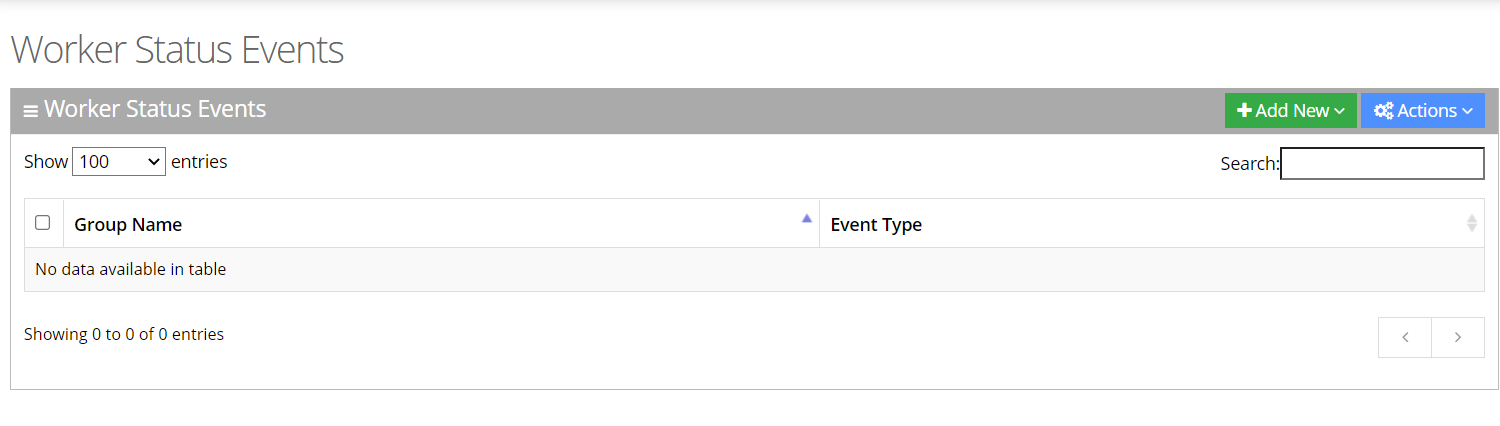
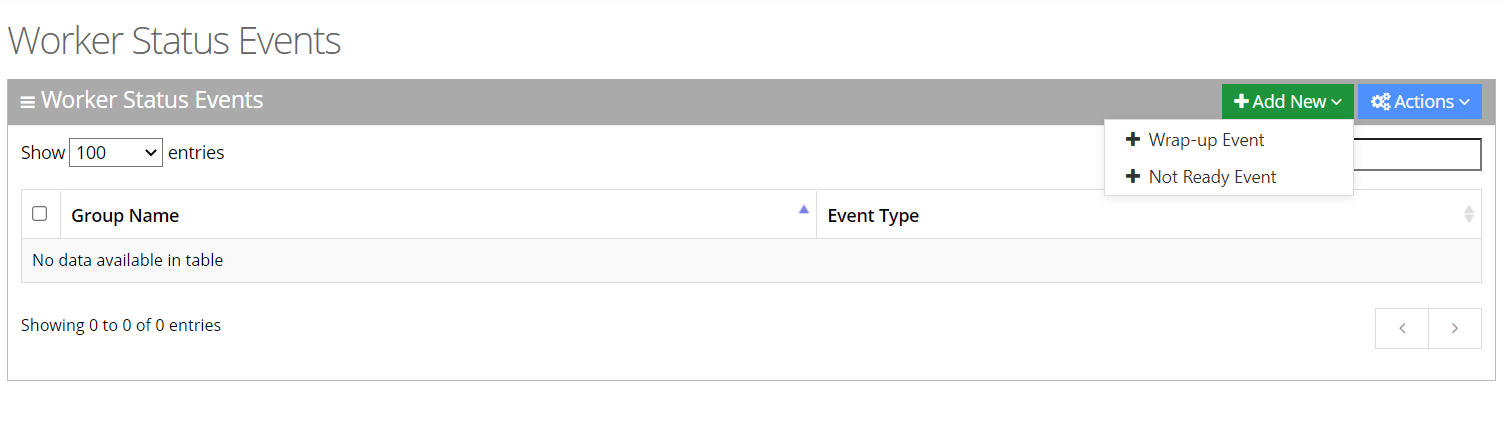
|
3.
|
Select the Wrap-up Event. |
|
4.
|
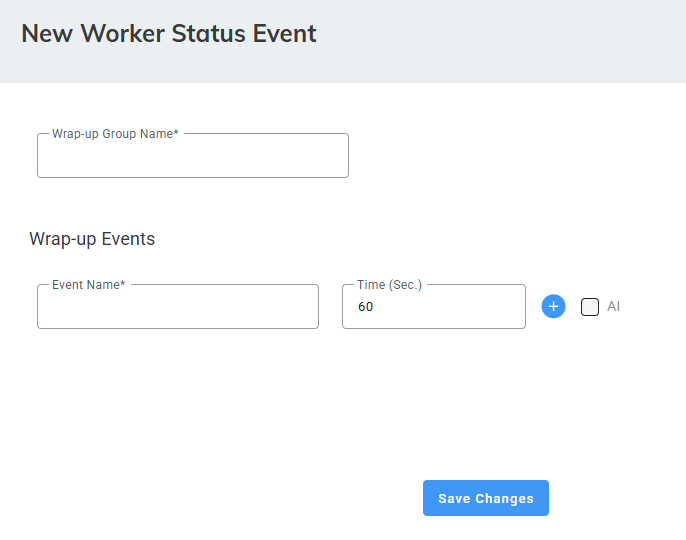
In the Wrap-up Event, enter the 'Group Name' and 'Event Name' in the appropriate fields. |
|
5.
|
For tenants with the Hybrid Worker feature enabled (System Settings > Hybrid Worker), select the ‘Hybrid Wrap-up’ checkbox to set a designated Wrap-up event for Hybrid Workers. |
|
6.
|
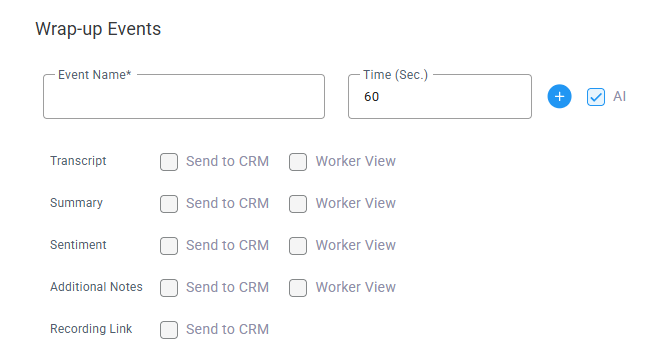
For tenants with Call Recordings (System Settings > Call Recordings) and the Agent Insights add-on, select AI to allow Workers with Agent Insights capabilities to view the call’s transcript, summary, and sentiment, and to enable sending this data to the CRM. |
|
7.
|
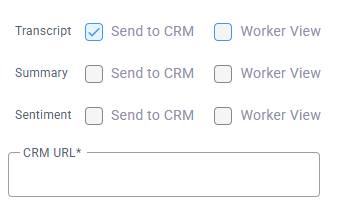
Configuration includes five components: |
|
●
|
'Transcript' – Contains the complete conversation between the caller and the agent, including speaker diarization that identifies who spoke and when. |
|
●
|
'Summary' – Contains key conversation highlights and a short summary with follow-up actions, generated based on the prompt assigned by the admin for this event. |
|
●
|
'Sentiment' – Displays the caller’s sentiment throughout the conversation, based on the analyzed interaction. |
|
●
|
‘Additional notes’ – Allows Worker to add notes at the end of the call. |
|
●
|
‘Recording Link’ – Sends to CRM ticket a URL with call details and recording. |
For each component, you can decide which information is sent to if the agent can view it.
|
a.
|
Select Send to CRM - at the end of the call the information is sent to the CRM as a .json file. |
|
b.
|
Select Worker View to allow the Worker to view the information. |
|
9.
|
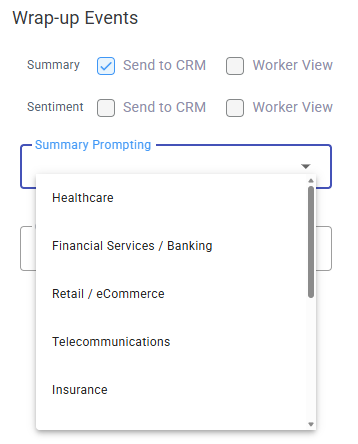
If you selected 'Summary', under 'Summary Prompting', select one of the top 10 predefined prompts. Voca uses the selected prompt to generate the conversation summary. |
|
10.
|
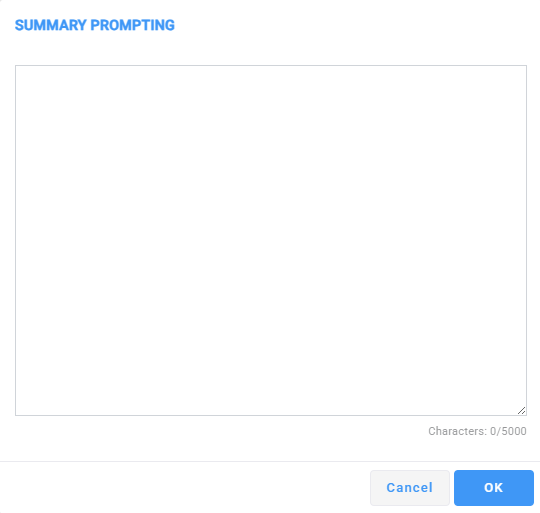
You can write your own prompt to generate a summary. Under 'Summary Prompting', select Custom. |

|
11.
|
Under 'Data', click the edit icon. |
|
12.
|
Enter your custom prompt, and click OK. |
Add a Not Ready Group Event
|
➢
|
To add a Not Ready Group event: |
|
1.
|
Open the Worker Status Events page (Configuration > Routing > Worker Status Event). |
|
3.
|
Select the Not Ready Event. |
|
4.
|
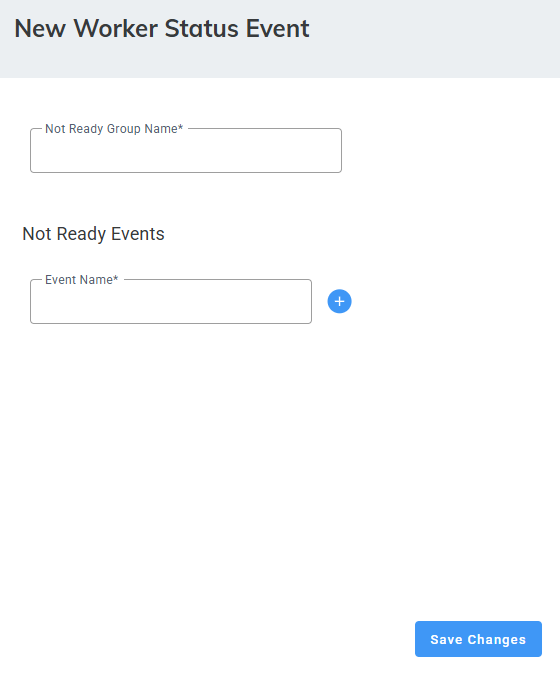
In the Not Ready Event, enter the 'Group Name' and 'Event Name' in the appropriate fields. |
|
5.
|
Click  to add additional events. to add additional events. |